Here are the steps on how to verify your Cebuana Xpress account via eKYC.
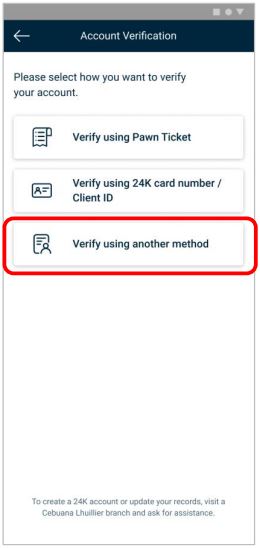
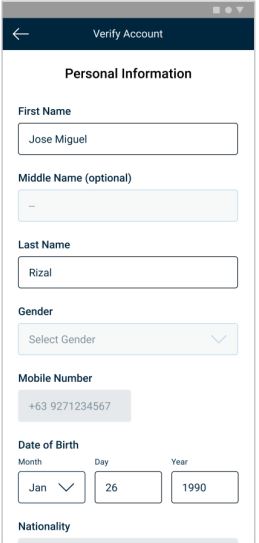
Step 1. Tap "Verify using another Step 2. Select a Gender. You may edit your name method and/or birthday if necessary.
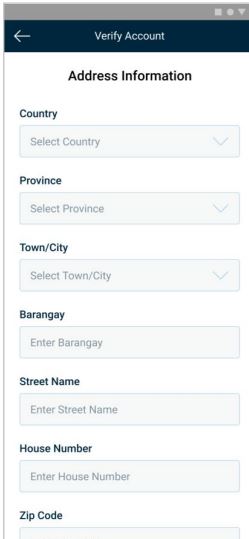
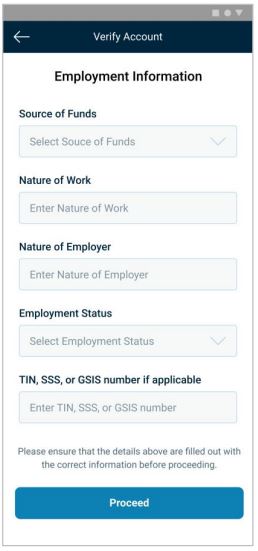
Step 3. Fill out address detail. Make sure Step 4. Fill out employment details. Make sure you've you've entered the details correctly. entered the details correctly.
How to Verify via eKYC (ID Scanning)
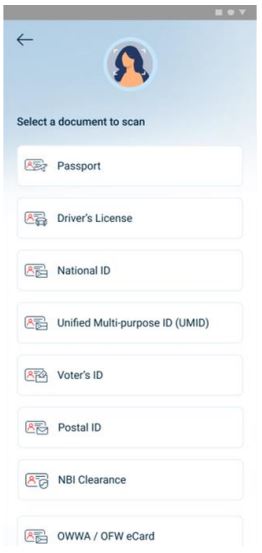
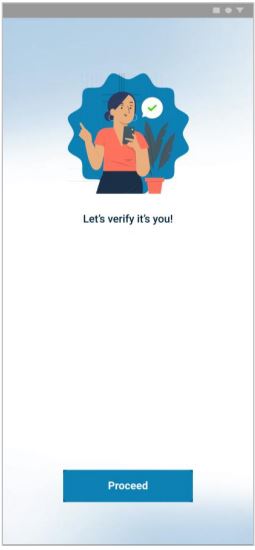
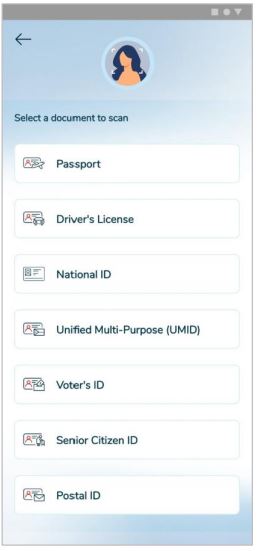
Step 5. Select the ID that you want to scan Step 6. Click on "Proceed" and prepare the ID you've selected
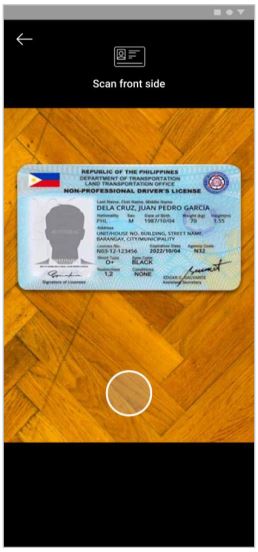
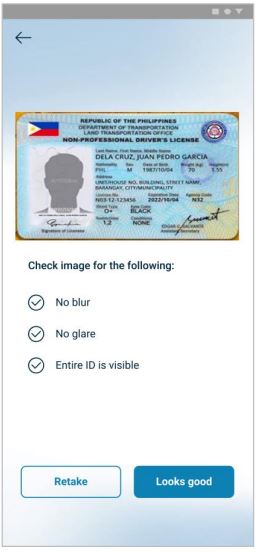
Step 7. Scan the front side of your ID. Step 8. Review the image. Tap "Looks good" to proceed. Ensure that the image has no blur, glare, Retake the photo if necessary. and that the entire ID is visible.
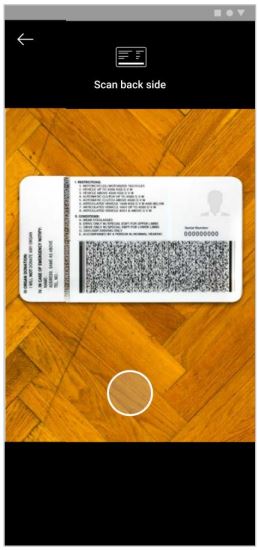
Step 9. Repeat the process for the back side of your ID
How to verify via eKYC (Liveness Check)

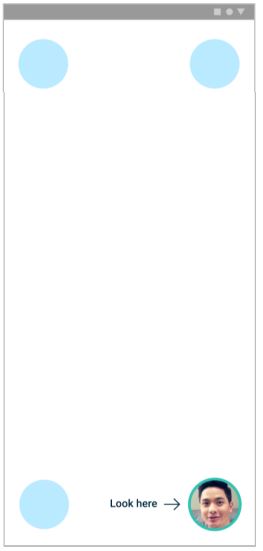
Step 10. Scan your face and ensure that you Step 11. Look at the four corners of your device. have a good lighting conditions.
How to verify via eKYC (Review Process: Approved)
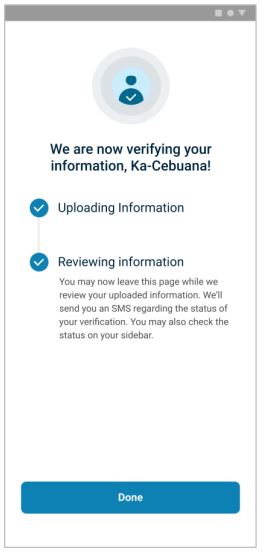
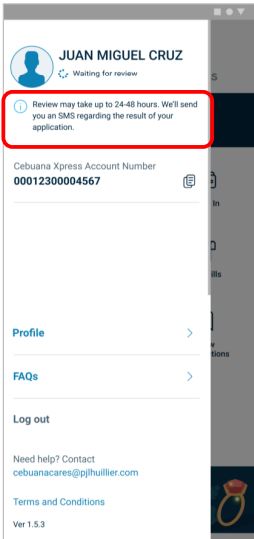
Step 12. Once uploading of Step 13. Check your verification status information is done, tap "Done" via the sidebar
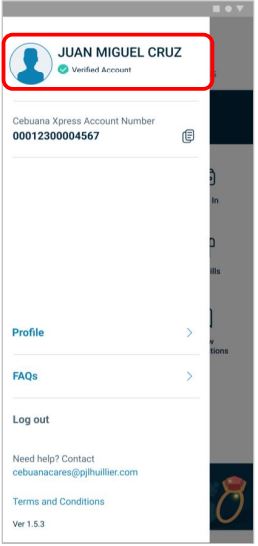

APPROVED. APPROVED - SMS Once approved, you will see a "VERIFIED You will also receive an SMS confirming Account" tag under your name your successful verification
How to verify via eKYC (Review Process: Rejected)
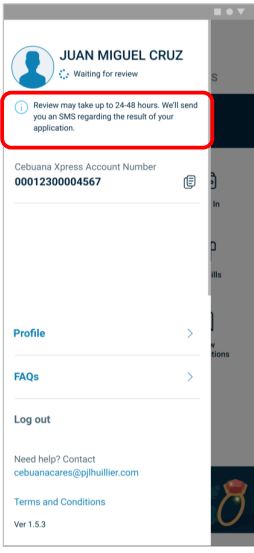
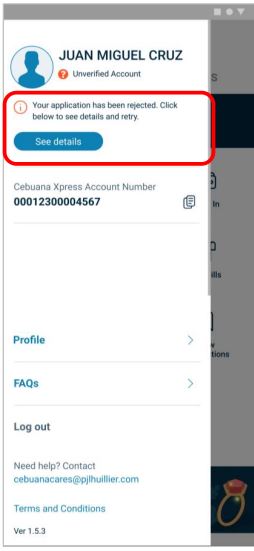
Step 14. Check your verifications status REJECTED- SIDEBAR via the Sidebar If application is rejected, an error will appear at the sidebar. Tap "See Details".
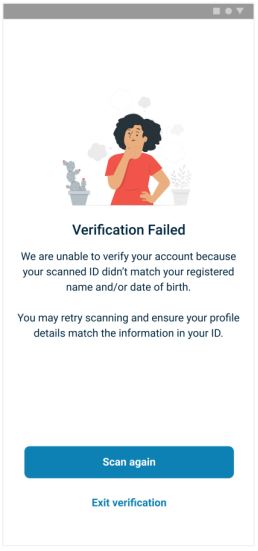
REJECTED - DETAILS REJECTED- SMS This is a sample of an error message. You will also receive an SMS regarding your failed If the client wants to retry, tap "Scan verification. again"
Retry (Step 5)
Retry the scanning process. Follow the instructions carefully to avoid another error
Note on ID Scanning
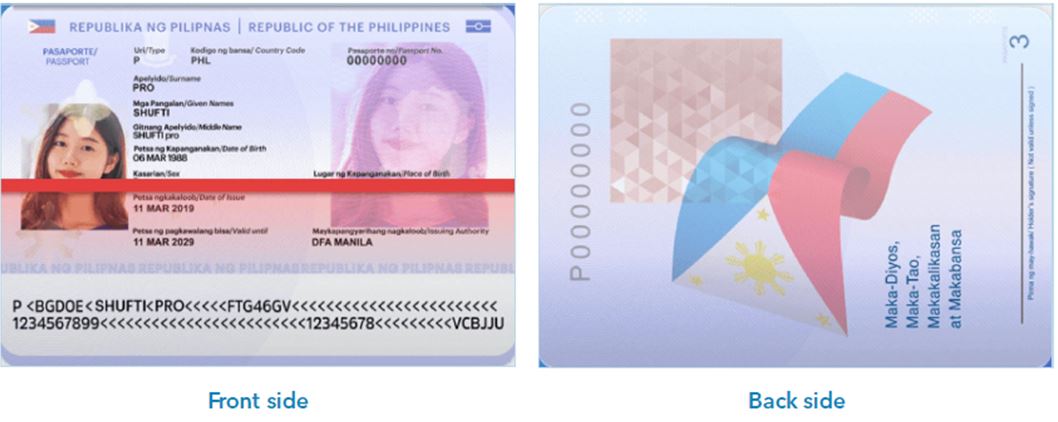
For those who selected passport for scanning, take note of the front and back side using the guide below.
Reason for verification rejection
|
In-App Spiel |
What happened |
|
Unsupported ID Type |
User take photo of an ID without Photo |
|
User take photo of an ID which is not part of the list |
|
|
User submitted an ID with incorrect character fonts |
|
|
Note: Secondary IDs have inconsistent formats (PWD, Senior Citizen) because they are being released per municipality, which means format differs. |
|
|
Unable to read information |
User take photo of a valid primary/secondary ID with blurred/glared image |
|
User take photo of a valid ID with damages |
|
|
User take photo of an ID but accidentally covered with finger |
|
|
User take photo of an ID but not properly centered/aligned/overlapping camera border |
|
|
User take a photo of the front and/or back only |
|
|
Expired ID |
User take photo of an expired ID |
|
Verification Failed Your ID doesn’t match your registered name and/or date of birth in Cebuana Xpress. Please retry the verification process and ensure your profile details match the information in your scanned ID. |
Name (First Name, Last Name) and Date of Birth on ID doesn’t match the registration |
References: